Connectitude's KLAB Chair UI
As an exercise I created a UI for a crane-operating chair for Connectitude. It was a previous job they tackled and it was interesting for them to see what my take on it would be.
I made a presentation (PDF) that may be viewed/downloaded.
 The first presentation slide and title.
The brief required me to focus on automation for an operator chair. It was to be obvious and easy to use, and take up only one 7" touch screen of 800×480px resolution. During my meeting with Connectitude I got to hear some of their thoughts concerning the project. It was an challenging task as KLAB were initially thinking that buying a bigger screen would be the solution for accommodating over 30 buttons/settings.
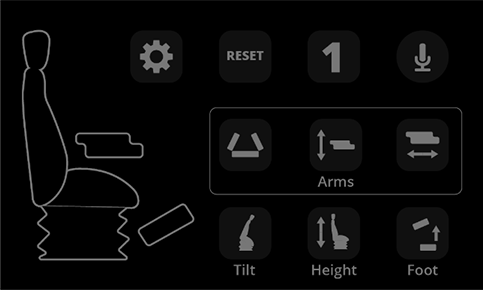
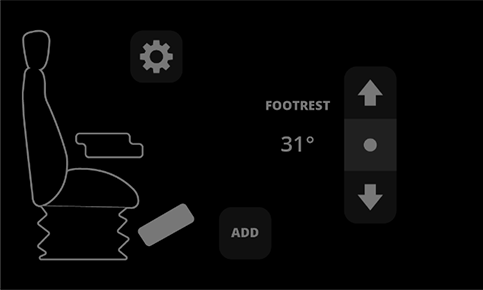
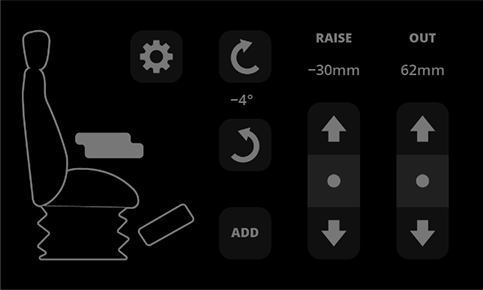
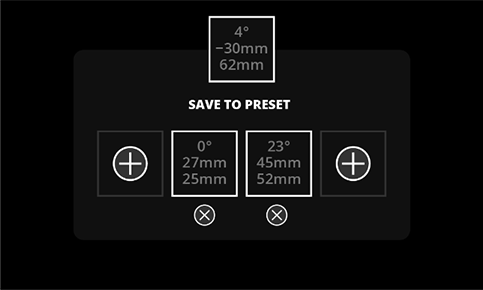 These were the resulting UI screens created, showing some of the features and usage of the tablet app.
There wasn't much information in text about crane operating chairs, but there were definitely videos. In any case, when I began researching more into it, it made sense to set the physical operations of the crane apart from the control of the chair. What better way to do so than by separating their interfaces? From their earlier versions of the chair you can see that the chair had it's own buttons/switches, which were separated physically away from all the other controls and were closer to the chair.
As I looked at what was good practice I formulated some guidelines for the color and form. It should be high contrast for visibility. Have simple, straightforward indications (the icon language should be easily recognizable). And we want a distinct yet sensible interface.
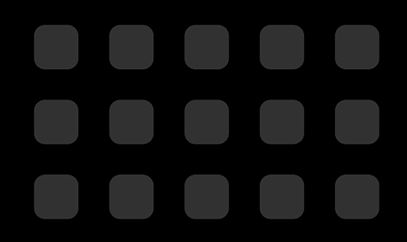 Button mappings for comfort and convenience. These were the result of testing for comfort, proximity to other buttons and allowance on user error.
For convenience and comfort, I mapped a comfortable button size (which I tested on my own) and spaced them to see how many I could fit on a 7" screen. At this stage I also concluded that there were 5 interactions one could achieve, if necessary. Press, Press & hold, Toggle, Toggle between and Toggle conditionally.
What follows are my notes which show a pretty clear process and some more of my thoughts before finalizing the interface.
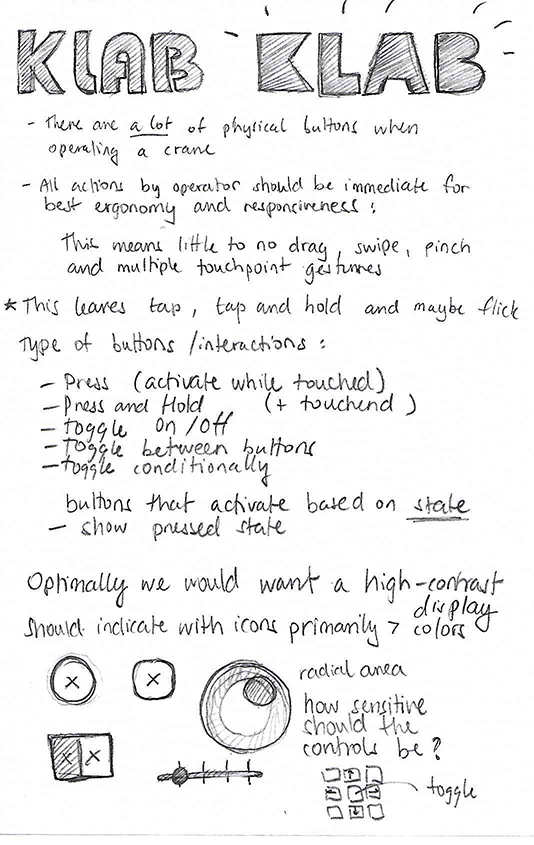
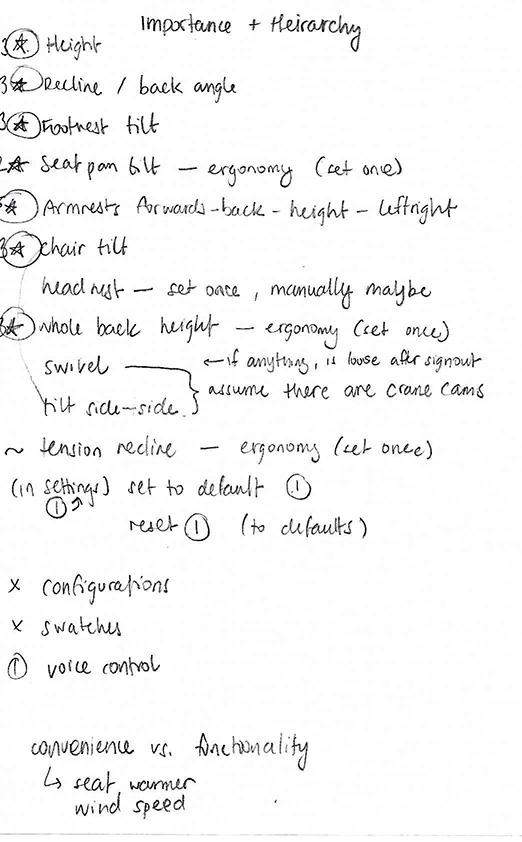
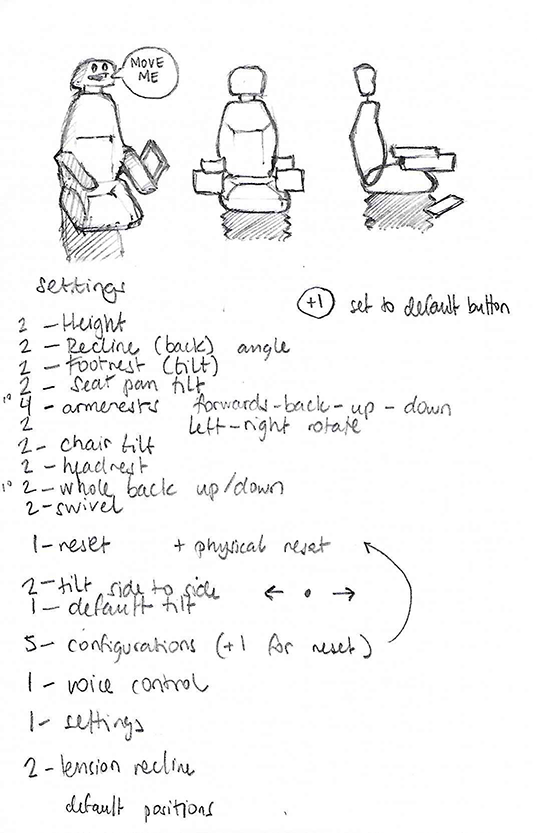 A lot of the initial thoughts and understanding of the brief were written out. The last image shows the interaction count of each of the settings to be used.
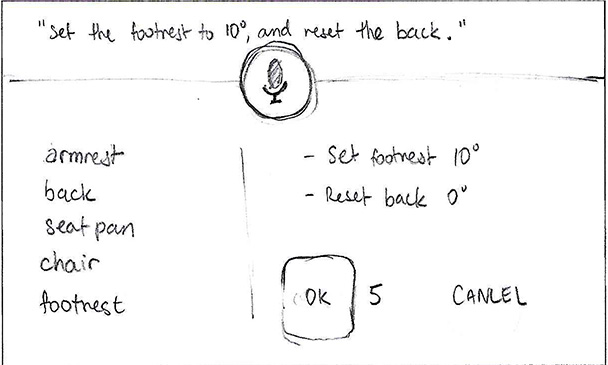
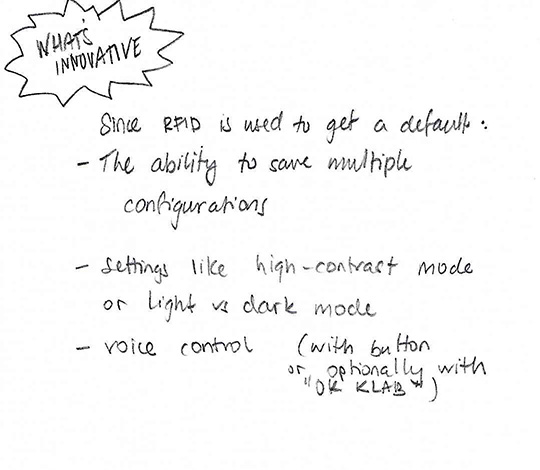 Voice control and extra notes about accessibility.
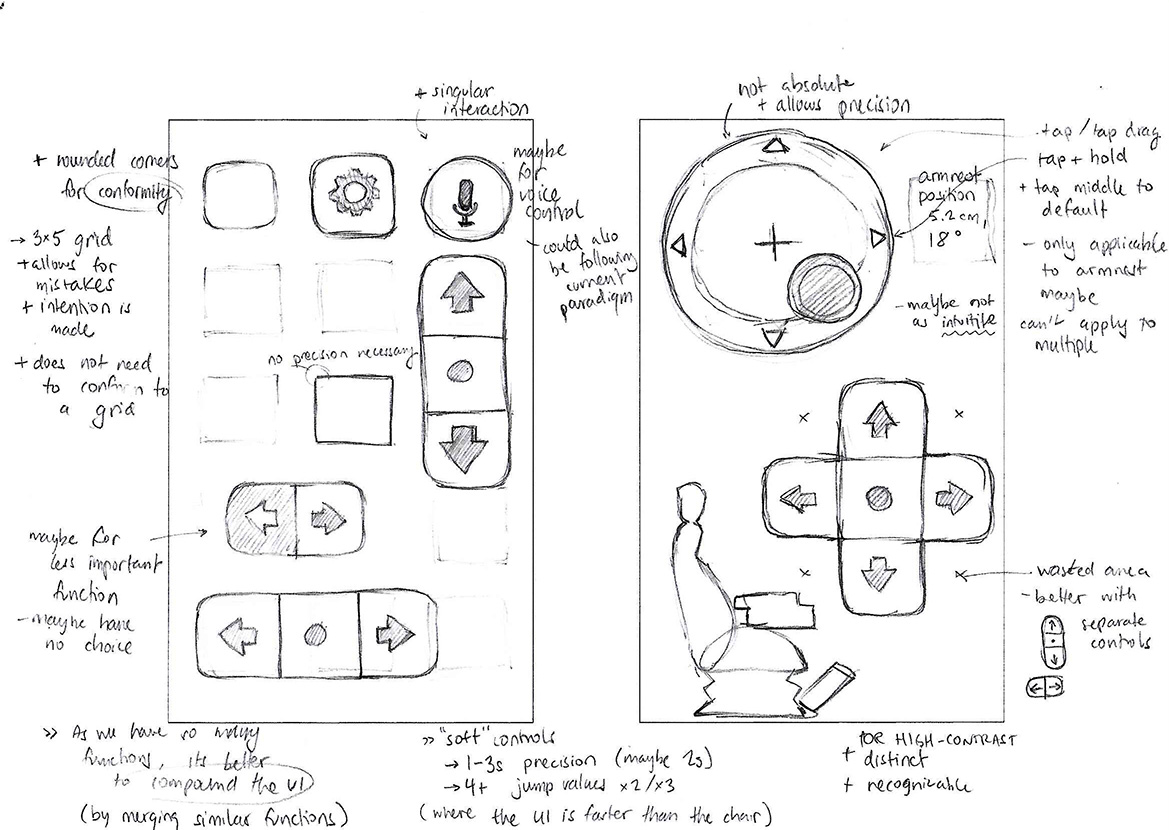
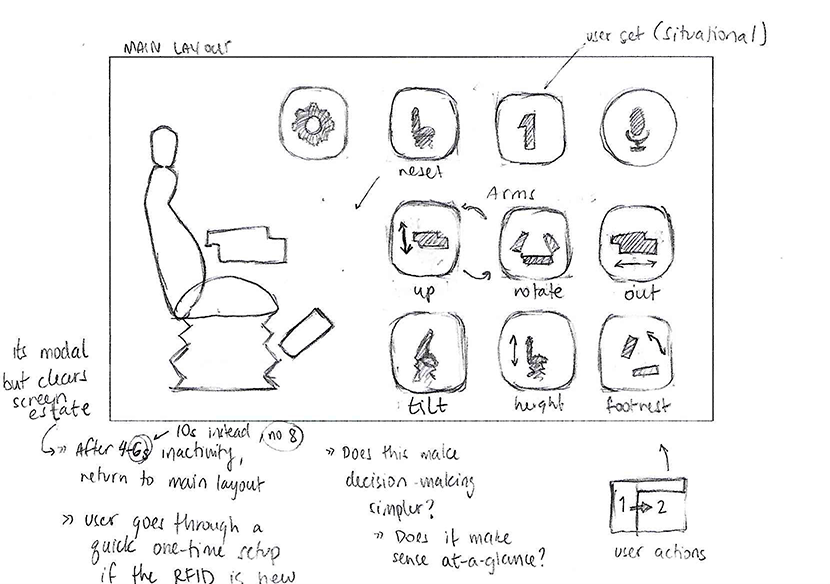 These sketches show some of the thoughts concerning UI and how all the particular design elements are meant to conform to the intended use of the tablet app.
In my presentation I also attempted to emphasize how there could be added functionality to the tablet application, which may include voice control and setting personal configurations. These allowed the user to focus more on crane operation and less on chair operation.
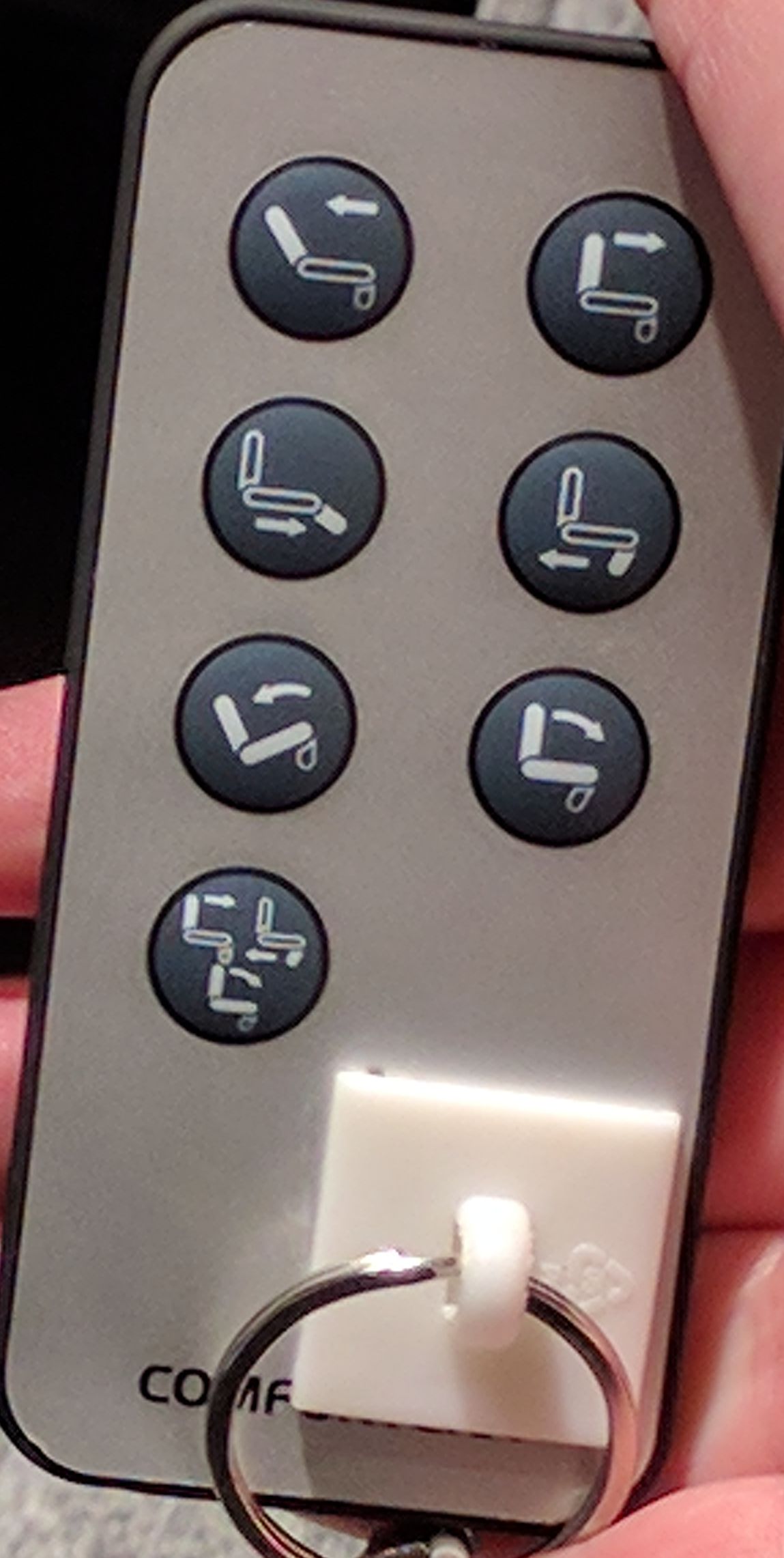 A luxury chair remote.
And although it came a lot later, a nice confirmation about how I went about this exercise came in when my partner and I were visiting a furniture shop and saw a luxury chair remote. It makes sense to move each individual part plainly and also to be able to set configurations.
